
VPN Configuration for iPhone: Complete Setup Guide
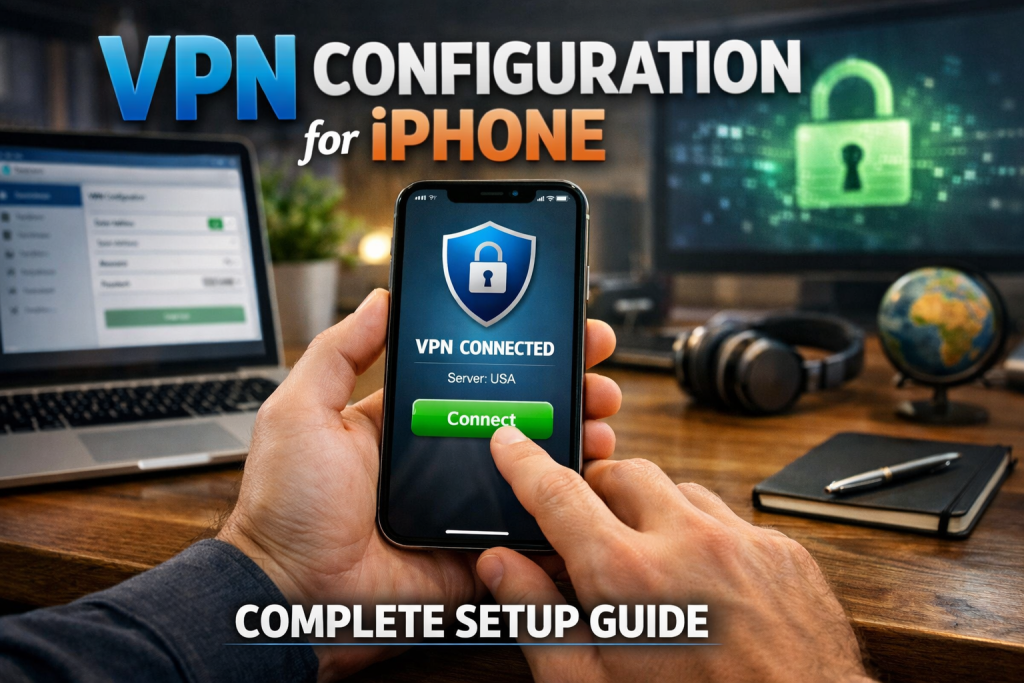
Setting up a vpn configuration for iphone allows you to secure internet traffic, protect sensitive data, and access restricted content directly from your device. Whether you are using a commercial VPN service, a corporate network, or a private server, iOS provides built-in tools to configure VPN connections quickly and securely. This guide explains the full setup process, including automatic and manual configuration, protocol selection, troubleshooting, and security considerations.
Understanding VPN Configuration on iPhone
A Virtual Private Network (VPN) encrypts your internet traffic and routes it through a secure server before reaching its destination. On an iPhone, VPN functionality is integrated into iOS, meaning no advanced technical knowledge is required for standard setups.
There are two primary methods for vpn configuration for iphone: automatic setup using a VPN provider’s app and manual configuration using built-in iOS settings. The automatic method is simpler and recommended for most users, while manual configuration is common in corporate or custom server environments.
iPhones support several VPN protocols, including IKEv2, IPSec, and L2TP. The availability of specific protocols depends on the VPN service or network administrator providing the connection details.
Automatic VPN Setup Using a VPN App
The simplest method for vpn configuration for iphone is installing a VPN provider’s official app from the App Store. Most commercial VPN services offer dedicated iOS applications designed for quick setup.
After downloading the app, open it and sign in with your account credentials. The app will usually prompt you to allow VPN configuration on your device. Tap “Allow,” and authenticate using Face ID, Touch ID, or your passcode to authorize the profile installation.
Once installed, the VPN profile integrates with your system settings. You can connect or disconnect directly from the app, and a small VPN icon appears in the status bar when the connection is active. This method automatically selects optimal protocols and servers, minimizing manual input.
Automatic setup is ideal for users seeking convenience, automatic updates, and simplified management. It also reduces the risk of misconfiguration.
Manual VPN Configuration for iPhone
Manual vpn configuration for iphone is useful when connecting to a workplace VPN, educational institution network, or a private server. This method requires specific details from your VPN provider or IT administrator.
To configure manually, open Settings, then navigate to General > VPN & Device Management > VPN. Tap Add VPN Configuration. You will see fields to enter required information.
Choose the appropriate VPN type, typically IKEv2, IPSec, or L2TP. Then enter the following details:
* Description (a name for the VPN connection) * Server address * Remote ID (if required) * Local ID (optional, depending on protocol) * Username and password * Secret or certificate (if provided)
After entering all required information, tap Done. You can activate the VPN by toggling the switch next to the configured profile. When connected successfully, the VPN indicator appears in the status bar.
Manual setup requires precise information. Any incorrect server address, authentication credential, or protocol mismatch can prevent connection.
Choosing the Right VPN Protocol
Protocol selection is critical in vpn configuration for iphone because it affects speed, security, and reliability.
IKEv2 is generally recommended due to its strong security and fast reconnection capabilities. It is especially effective when switching between Wi-Fi and mobile data, as it maintains stability during network changes. IPSec provides robust encryption and is often used in enterprise environments. It can be configured with certificates or shared secrets for authentication. L2TP is supported but considered less secure compared to modern standards. Many providers are gradually phasing it out in favor of stronger alternatives.
When possible, choose IKEv2 unless instructed otherwise by your network administrator.
Managing and Optimizing Your VPN Connection
Once your vpn configuration for iphone is active, you can manage it directly from the VPN section in Settings. You may switch between multiple VPN profiles if you have more than one configured.
To improve performance, connect to a server geographically close to your location. Closer servers typically provide lower latency and faster speeds. If connection drops occur, switching protocols or restarting the device can resolve minor issues.
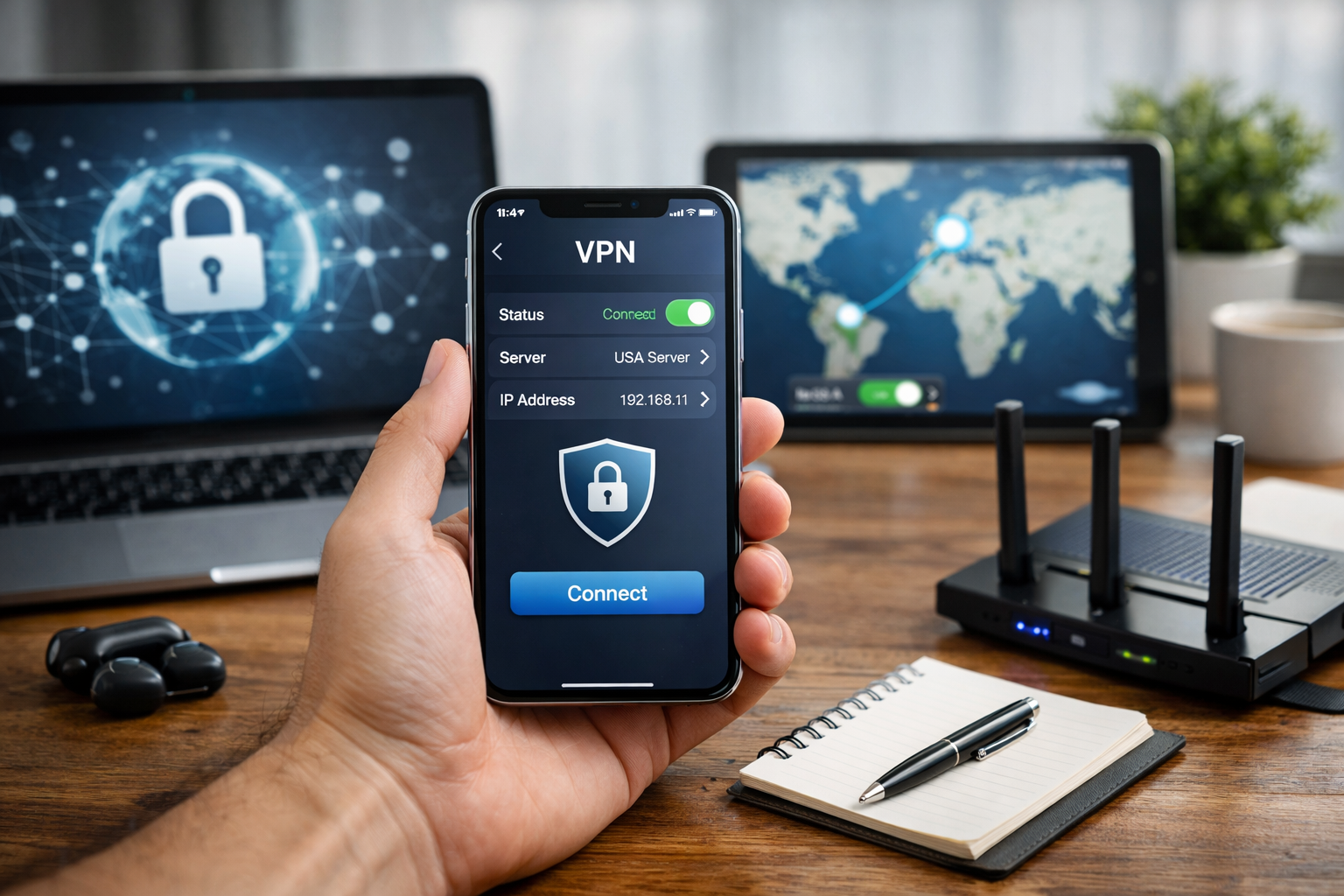
Battery consumption may increase slightly when a VPN is active because encryption processes require additional system resources. However, modern iPhones are optimized to handle VPN encryption efficiently.
If a connection fails, verify the following:
* Server address accuracy * Username and password correctness * Protocol compatibility * Stable internet connection
Deleting and re-adding the VPN profile can also resolve persistent errors.
Security and Privacy Considerations
A properly configured VPN enhances data security, especially on public Wi-Fi networks. It encrypts traffic, making it difficult for attackers to intercept sensitive information such as login credentials or financial data.
However, VPN security also depends on the provider’s infrastructure. Encryption protects data in transit, but privacy policies determine how data is handled on the server side.
For corporate environments, manual vpn configuration for iphone often includes certificate-based authentication, which adds an additional security layer. Avoid installing unknown VPN profiles from unverified sources, as malicious profiles can compromise device integrity.
Regularly updating iOS ensures compatibility with the latest security protocols and reduces vulnerabilities.
Common Issues and Troubleshooting Steps
Even with correct vpn configuration for iphone, users may encounter occasional problems. The most common issues include authentication errors, unstable connections, and inability to access certain websites.
If authentication fails, double-check credentials and shared secrets. In corporate setups, password expiration policies may require updated login details.
If the VPN connects but internet access stops working, disconnect and reconnect. Restarting Wi-Fi or switching to mobile data can also help isolate network-related problems.
For persistent errors, delete the VPN profile and recreate it from scratch using verified configuration details. This resolves configuration conflicts in many cases.
Conclusion
A correct vpn configuration for iphone provides secure, encrypted access to the internet and private networks. Whether using an automatic app-based setup or manual configuration, the process is straightforward within iOS settings. Selecting the appropriate protocol, entering accurate credentials, and maintaining updated system software ensures reliable and secure VPN performance.
FAQ
Q: How do I manually add a VPN on my iPhone? A: Go to Settings > General > VPN & Device Management > VPN, tap “Add VPN Configuration,” and enter the server details, protocol type, and login credentials provided by your VPN service.
Q: Which protocol is best for vpn configuration for iphone? A: IKEv2 is generally preferred because it offers strong security, fast reconnection, and stable performance across network changes.
Q: Why is my VPN not connecting on iPhone? A: Incorrect server details, expired credentials, or incompatible protocol settings are the most common causes of connection failure.
Q: Does using a VPN slow down my iPhone internet speed? A: A VPN may slightly reduce speed due to encryption and routing through a remote server, but performance impact is typically minimal with optimized servers.
Q: Is it safe to install VPN profiles on iPhone? A: It is safe when profiles come from trusted providers or authorized administrators, but installing unknown profiles can pose security risks.