
How To Disable A VPN On Any Device
Are you looking for a quick and easy way to disable your VPN on any device? Look no further! In this comprehensive guide, we will provide you with step-by-step instructions on how to turn off your VPN and regain access to unrestricted internet browsing.
Whether you are using a Windows computer, macOS device, iOS smartphone or tablet, Android device, smart TV, streaming device, or gaming console, we’ve got you covered. Our tutorial will walk you through the VPN disable process on different platforms.
No matter your reason for disabling the VPN – whether it’s to access region-restricted content, temporarily turn off VPN protection, or permanently deactivate it – our quick and easy methods will help you accomplish that.
So, if you’re ready to learn how to disable a VPN on any device, let’s dive right in!
Disabling a VPN on Windows
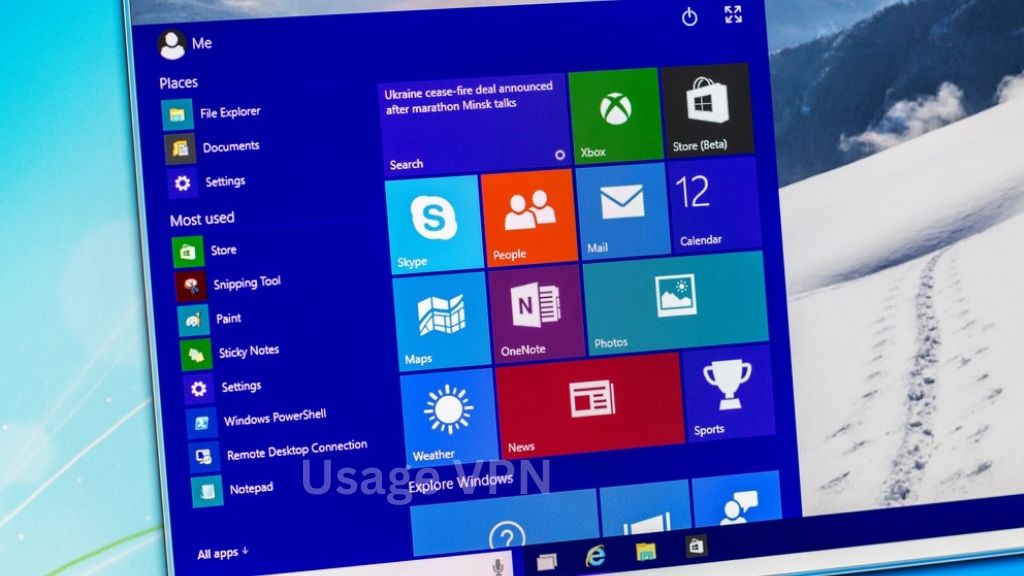
If you are using a Windows device and need to disable your VPN, follow these step-by-step instructions to quickly turn off the VPN connection and regain access to the internet without VPN protection:
- Click on the Start Menu in the bottom left corner of your screen.
- Select the Settings option to open the Windows Settings menu.
- In the Settings menu, click on the Network & Internet option.
- On the left-hand side menu, choose the VPN category.
- You will see a list of available VPN connections. Locate the VPN connection you want to disable.
- Select the VPN connection and click on the Disconnect button to turn off the VPN.
By following these simple steps, you can quickly disable the VPN on your Windows device and browse the internet without VPN protection.
Turning Off a VPN on macOS.
For macOS users, disabling a VPN is a straightforward process. Follow the step-by-step guide below to turn off your VPN on your macOS device and browse the web without the VPN’s encryption and IP masking.
- Open the “Apple” menu located at the top-left corner of your screen.
- Select “System Preferences” from the dropdown menu.
- In the System Preferences window, click on the “Network” icon.
- On the left-hand side, you will see a list of network connections. Locate and click on your VPN connection.
- Click on the “Disconnect” button to turn off the VPN and deactivate the connection.
That’s it! You have successfully disabled the VPN on your macOS device. Now you can browse the internet without the VPN’s protection. Remember, you can always re-enable the VPN by following the same steps and connecting to your VPN service.
Disabling a VPN on iOS.
If you are an iPhone or iPad user and want to disable your VPN on iOS, these step-by-step instructions will guide you through the process. Whether you need to temporarily turn off your VPN or permanently deactivate it, following these steps will help you accomplish that:
- Open the Settings app on your iOS device. You can find the Settings app on your home screen, represented by a grey gear icon.
- Scroll down and tap on the “VPN” option. This will take you to the VPN settings page.
- On the VPN settings page, you will see all the active VPN connections on your device. Tap on the switch next to the VPN connection you want to disable. The switch will turn off, indicating that the VPN is now disabled.
By following these simple steps, you can easily disable your VPN on iOS. Whether you need to turn off your VPN for a specific task or want to permanently deactivate it, these instructions will help you regain unrestricted access to the internet without VPN protection.
Disabling a VPN on Android.
Android devices offer numerous VPN options, allowing users to browse the internet securely and privately. However, there may be situations where you need to disable your VPN temporarily or permanently. Whether you want to access region-restricted content or troubleshoot network issues, disabling your VPN on an Android smartphone or tablet is a straightforward process.
To disable a VPN on your Android device, follow these step-by-step instructions:
- Open the “Settings” app on your Android device.
- Scroll down and tap on “Network & internet”.
- Under the “Advanced” section, tap on “VPN”.
- You will see a list of installed VPN apps. Locate the VPN app you want to disable and tap on it.
- A screen with the VPN app’s details will appear. Look for the “Disconnect” or “Disable” button and tap on it.
By following these simple steps, you can easily disable your VPN on your Android device and revert to a regular internet connection.
Turning Off a VPN on Smart TVs and Streaming Devices.
Many smart TVs and streaming devices offer VPN functionality, allowing you to protect your privacy and access geo-restricted content. However, there may be times when you want to disable the VPN to access region-specific content that is otherwise blocked. Whether you want to temporarily turn off the VPN or permanently deactivate it, follow these step-by-step instructions to disable a VPN on popular smart TVs and streaming devices.
- Start by navigating to the settings menu on your smart TV or streaming device. This can usually be accessed from the home screen or a dedicated settings button on the remote control.
- Once in the settings menu, look for the network or internet settings. The location and labeling of these settings may vary depending on your device and manufacturer.
- Within the network or internet settings, locate the VPN or privacy options. This is where you will find the VPN settings for your device.
- Select the VPN option to access the VPN settings.
- Within the VPN settings, you will typically find an option to disable or turn off the VPN. Click on this option to disable the VPN on your smart TV or streaming device.
- After disabling the VPN, you may need to restart your device for the changes to take effect.
By following these easy steps, you can quickly disable the VPN on your smart TV or streaming device, giving you unrestricted access to the content you want. Remember to enable the VPN again if you want to resume using its privacy and security features.
Disabling a VPN on Gaming Consoles.
Gaming consoles often offer built-in VPN support, allowing users to enjoy enhanced privacy and security during online gameplay. However, there may be times when you want to disable the VPN on your gaming console to access certain games or content that are restricted by geographical location. In this section, we will guide you through the step-by-step process of disabling a VPN on popular gaming consoles, so you can enjoy gaming without any VPN restrictions.
Disabling a VPN on PlayStation
- On your PlayStation console, navigate to the “Settings” menu.
- Select “Network Settings”.
- Choose “Set Up Internet Connection”.
- Select the Wi-Fi or LAN cable connection you are using.
- Choose “Custom” as the connection method.
- Keep selecting “Next” until you reach the “Proxy Server” screen.
- Toggle the “Use a Proxy Server” option to off.
- Follow the on-screen prompts to complete the setup.
Disabling a VPN on Xbox
- Press the Xbox button on your controller to open the guide.
- Select the “Settings” option (gear icon) from the side menu.
- Choose “Network” under the “Settings” menu.
- Select “Network Settings”.
- Choose “Advanced settings”.
- Scroll down and select “DNS settings”.
- Select “Automatic” for DNS settings.
- Restart your Xbox console.
Disabling a VPN on Nintendo Switch
Unfortunately, the Nintendo Switch does not have built-in VPN support. However, if you have installed a VPN app on your Nintendo Switch, you can follow these steps to disable it:
- Open the VPN app on your Nintendo Switch.
- Navigate to the settings or options menu within the VPN app.
- Locate the option to disconnect or disable the VPN.
- Select the option to turn off the VPN connection.
By following these simple steps, you can easily disable a VPN on popular gaming consoles and enjoy gaming without any VPN restrictions. Remember, if you wish to re-enable the VPN at any time, you can simply follow the steps again and turn the VPN back on.
Conclusion
Disabling a VPN on any device is a straightforward process that allows you to regain control over your internet browsing. By following the step-by-step instructions provided in this guide, you can easily turn off your VPN and access unrestricted content.
It is important to remember that before disabling your VPN permanently, you should consider your privacy and security needs. VPNs provide encryption and IP masking, which can help protect your online activities from prying eyes. So, assess the risks and benefits before making a decision.
Whether you are using a Windows computer, macOS device, iOS device, Android smartphone, smart TV, streaming device, or gaming console, this guide has covered all the necessary steps to disable the VPN. With this knowledge, you have the power to control your VPN usage and customize your internet experience as per your requirements.
FAQ
How do I disable a VPN on Windows?
To disable a VPN on Windows, follow these steps: 1. Open the Start menu and click on “Settings.” 2. Click on “Network & Internet.” 3. In the left panel, click on “VPN.” 4. Select the VPN connection you want to disable. 5. Click on “Disconnect.”
How do I turn off a VPN on macOS?
Disabling a VPN on macOS is simple: 1. Click on the Apple menu and select “System Preferences.” 2. Click on “Network.” 3. In the left sidebar, select the VPN connection you want to disable. 4. Click on the “Disconnect” button.
Can I disable a VPN on my iOS device?
Absolutely! Here’s how you can disable a VPN on iOS: 1. Go to the “Settings” app on your iPhone or iPad. 2. Tap on “VPN” and select the VPN connection you want to disable. 3. Toggle the status switch to turn off the VPN connection.
How do I disable a VPN on Android?
Disabling a VPN on Android is straightforward: 1. Open the “Settings” app on your device. 2. Tap on “Network & internet.” 3. Tap on “VPN” and select the VPN connection you want to disable. 4. Tap on the toggle switch to turn off the VPN.
How can I disable a VPN on my smart TV or streaming device?
Disabling a VPN on smart TVs and streaming devices can vary, but here are the general steps to follow: 1. Open the VPN app on your device. 2. Find the option to disconnect or disable the VPN connection. 3. Click on it to turn off the VPN and regain access to your regular network.
Can I disable a VPN on my gaming console?
Yes, you can disable a VPN on gaming consoles. The process may vary depending on the console, but generally, you can disable the VPN in the network settings. Refer to your console’s user manual or online resources for specific instructions.
What should I consider before disabling my VPN permanently?
Before disabling your VPN permanently, consider the level of privacy and security you need while browsing the internet. If you regularly access sensitive information or connect to public Wi-Fi networks, it’s recommended to keep your VPN enabled to protect your data.