
Troubleshooting VPN Connection Issues: Step-by-Step Guide
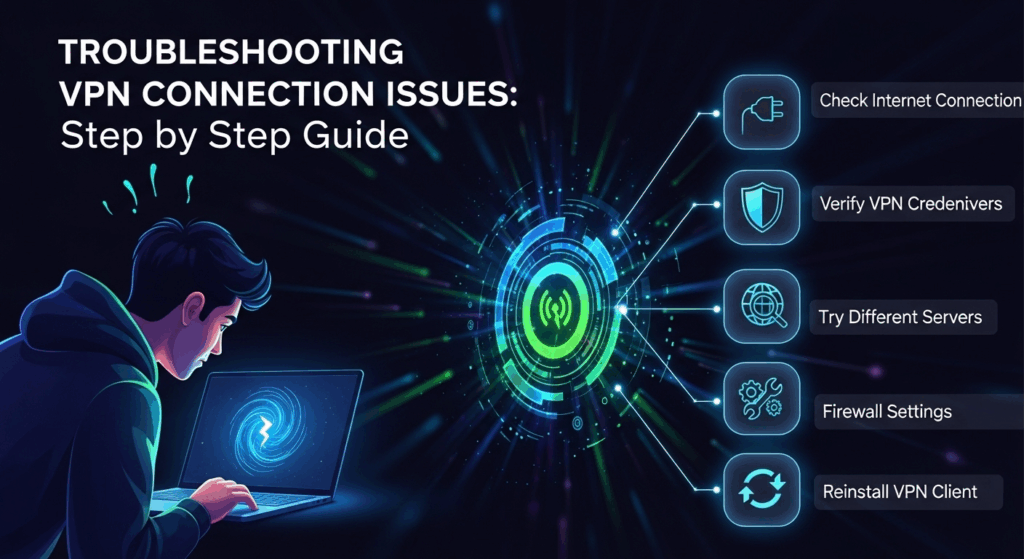
Troubleshooting VPN Connection Issues: Step-by-Step Guide
When your VPN refuses to connect, stalls on handshakes, or drops unexpectedly, productivity and privacy both take a hit. This comprehensive guide to troubleshooting vpn connection issues walks you through a structured, step-by-step process that works across Windows, macOS, iOS, Android, and Linux. You’ll learn how to pinpoint root causes, apply fixes in the right order, and optimize for long-term stability and speed.
Understanding How VPNs Work and Why Connections Fail
Before diving into fixes, it helps to understand how a VPN connection actually forms. A VPN client negotiates a secure tunnel with a server using a protocol (such as WireGuard, OpenVPN, or IKEv2), authenticates your identity, and establishes routes so traffic flows through the encrypted tunnel. If any of these stages break, your session may not start—or may start but fail to carry any traffic.
In practice, failures commonly stem from three layers: the device (client software, drivers, local firewall), the network path (Wi‑Fi, router, ISP, upstream blocks), and the server side (authentication, certificates, server load, or a temporary outage). A disciplined approach isolates the layer at fault quickly.
By moving from general to specific, you avoid chasing edge cases prematurely. Start simple—confirm internet access, credentials, and updates—then move into protocols, ports, DNS, routing, and firewall rules. This progression saves time and reduces the chance of overlooking an obvious fix.
1. What Happens During a VPN Connection?
When you click Connect, the client first resolves the server’s hostname to an IP using DNS. Next, it reaches the server over specific ports (for example, UDP 1194 for OpenVPN, UDP 51820 for WireGuard, UDP 500/4500 for IKEv2). Once contact is made, the peers perform a cryptographic handshake and validate keys or certificates. After authentication, routes are installed so your operating system knows which traffic goes through the tunnel.
If DNS fails, the client never reaches the server. If the port is blocked, the handshake never occurs. If credentials or certificates are invalid, authentication fails. And if routes or DNS settings are misapplied post-connection, you might connect but lack internet access.
Understanding this sequence helps you map error messages to likely causes. For instance, “TLS handshake failed” points to protocol/crypto or network blocks; “AUTH failed” suggests login, MFA, or account issues; “Connected, no internet” often indicates DNS or routing misconfiguration.
2. Common Failure Points Explained
- Client-side issues: Outdated VPN apps, corrupted network adapters, misconfigured split tunneling, conflicting antivirus/firewall, or a system clock that’s out of sync can all prevent connections.
- Network path issues: Public Wi‑Fi with captive portals, restrictive corporate firewalls, ISP port blocks, or CGNAT can block VPN ports or interfere with UDP.
- Server-side issues: Overloaded servers, expired certificates, disabled accounts, or MFA misconfigurations can cause intermittent or persistent failures.
Each failure point has a corresponding diagnostic tactic. For example, switching from UDP to TCP/443 tests whether a firewall is blocking UDP. Trying a different server region tests for localized outages. Adjusting MTU tests for fragmentation.
3. A Quick Triage Checklist
- Is your internet working without the VPN?
- Is your VPN subscription or corporate account active and not locked?
- Have you tried a different server region and protocol?
- Have you signed out/in, rebooted the device, and updated the app/OS?
- Are you behind a restrictive network (hotel, café Wi‑Fi, school, corporate)?
- Does switching from UDP to TCP or to port 443 make a difference?
This checklist solves a surprising number of issues in minutes. If problems persist, proceed to deeper diagnostics below.
Step-by-Step Basics: Fix the Fundamentals First
Basic hygiene resolves many issues before complex troubleshooting is needed. Start with connectivity, credentials, and client updates, then iterate through server selection and protocol changes.
These fundamentals not only fix common problems; they also produce clear signals. Each change narrows the root cause by ruling out an entire class of failures.
Make small, measured adjustments and test after each one. Recording what you tried and the outcome helps if you eventually contact support.
1. Verify Internet Access and Account Status
Confirm that non-VPN internet access is stable. Load several sites, run a quick speed test, or ping a known domain. If general connectivity is flaky, address that first—no VPN can stabilize a failing connection.
Next, verify your account status. For commercial VPNs, check subscription validity; for corporate setups, confirm that your account has the required group policies, and that MFA is not stuck on a device change. Look for emails about password resets or geo-fenced access restrictions.
If your provider offers a status page, check for server outages or maintenance. Trying a different region nearby (or the provider’s “smart connect” option) often bypasses regional issues.
2. Reboot, Update, and Re-login
A reboot clears temporary adapter states, locked sockets, and background services that can stall a VPN. Update the VPN client and your operating system; newer versions include protocol improvements, bug fixes, and compatibility patches.
Sign out and sign back in to refresh tokens. If MFA is enabled, re-enroll if prompted, and ensure your time and date are correct—clock skew can break authentication and certificate validation. On mobile, toggle Airplane mode on and off to reset network stacks.
If your VPN supports multiple protocols within the same app, ensure the updated client applied defaults correctly; sometimes a major update resets certain settings like DNS management or split tunneling.
3. Switch Server, Protocol, and Port
- Try a nearby server with lower load. High-load servers may accept connections but perform poorly or drop sessions.
- Change protocol: WireGuard is typically fast and efficient; OpenVPN is flexible and can run over TCP/443; IKEv2 is solid on mobile for roaming.
- Change port: If UDP is blocked, switch to TCP/443 to mimic regular HTTPS traffic. Some providers let you use custom ports to evade aggressive filtering.
Each change tests a different variable: region availability, firewall policy, or network neutrality. If TCP/443 works but UDP/1194 fails, a firewall is likely filtering UDP.
Network Layer Diagnostics: DNS, IP, and Routing
When the basics don’t solve the problem, examine DNS resolution, IP addressing, and routing rules. Symptoms like “connected but can’t browse,” or certain apps bypassing the VPN, often point here.
DNS impacts both initial connection (resolving the VPN server) and internet access after the tunnel is up. Routing tells your device which packets go to the VPN interface and which go directly to the internet.
Because this layer blends OS settings with VPN client controls, a methodical approach is essential. Focus first on DNS, then on IPv6, then on MTU and fragmentation.
1. DNS Resolution and Leaks
If your client can’t resolve the VPN server’s hostname, try:
- Pinging the DNS name to see if it resolves to an IP.
- Switching temporarily to a public resolver (e.g., 1.1.1.1 or 8.8.8.8) at the OS or router level.
- Enabling the VPN client’s own DNS management feature, if available.
Post-connection, “connected with no internet” can occur if DNS servers are unreachable over the tunnel. Ensure the VPN-pushed DNS is reachable and that your client applies it consistently. Some systems need a DNS cache flush. On Windows, use ipconfig /flushdns; on macOS, use sudo dscacheutil -flushcache; on Linux, restart the resolver service.
A DNS leak—where queries go outside the tunnel—won’t usually block connectivity, but it undermines privacy and can cause geolocation issues. Use your provider’s leak test page and ensure “Use VPN DNS” is enabled. If you need split tunneling, configure DNS carefully so excluded apps don’t leak sensitive lookups.
2. IPv6 and Split Tunneling Conflicts
IPv6 can complicate routing if your VPN or network doesn’t fully support it. If you connect but certain sites fail or geo-detection seems inconsistent, test by temporarily disabling IPv6 at the OS level or enabling IPv6 support inside the VPN if offered.
Split tunneling routes only certain apps or domains through the VPN. Misconfigured rules can accidentally exclude browsers, DNS, or critical services. If you’re unsure, disable split tunneling and test again. If the issue disappears, rebuild your split rules, starting with minimal exclusions.
Some corporate environments require full tunnel for compliance. If you’re using split tunneling on a corporate VPN and apps fail to authenticate, check with IT about policy requirements.
3. MTU and Packet Fragmentation
An incorrect MTU can cause silent failures—small packets pass while larger ones stall. Symptoms include pages that partially load or time out. You can:
- Lower MTU incrementally (e.g., try 1400, then 1380) within your VPN client if supported.
- On routers, adjust the WAN interface MTU.
- Switch from UDP to TCP if MTU tuning isn’t available; TCP can sometimes cope better with path MTU issues.
Test after each change by loading large webpages or downloading a file. If behavior improves at a lower MTU, leave it at the smallest value that works reliably.
Firewall, Antivirus, and Router Configuration
Security software and network appliances sometimes interpret VPN behavior as suspicious and block it. Knowing where to add exceptions or adjust settings is crucial.
Local firewalls can block outbound ports; antivirus suites can interfere with drivers; routers can apply SPI firewalls or parental controls; and ISPs may block or throttle certain protocols.
Rather than turning everything off, use targeted exceptions. This preserves security while restoring functionality.
1. Local Firewall and Security Suites
- Add your VPN app to firewall allow lists for both private and public networks.
- Enable “allow VPN passthrough” options if your security suite offers them.
- If you installed a new antivirus recently, temporarily disable web filtering/HTTPS inspection to test. If the VPN works, configure exceptions for the VPN executable and service.
Some security tools install network filter drivers. Driver conflicts can break VPN adapters. Updating or reinstalling the security suite (or the VPN client) often fixes this. Always reboot after changes to drivers or firewall rules.
If your OS has a built-in firewall profile (e.g., Windows Public vs. Private), ensure the current network profile allows outbound VPN traffic. Switching Wi‑Fi from “Public” to “Private” can resolve strict default rules.
2. Router/NAT, CGNAT, and Port Blocking
Routers with Stateful Packet Inspection (SPI) may block or throttle unfamiliar UDP flows. Try disabling aggressive features like SIP ALG for testing, and look for VPN passthrough settings (IPsec, L2TP, PPTP). While PPTP is insecure and largely deprecated, you might see its passthrough toggle; focus on IPsec and generic VPN/NAT-T.
Carrier-grade NAT (CGNAT), common on mobile or some ISPs, can disrupt inbound flows and break certain UDP-based tunnels. If UDP consistently fails but TCP/443 works, CGNAT or ISP filtering is likely. Consider:
- Switching protocol to TCP/443.
- Using an obfuscation mode if your provider supports it.
- Requesting a public IP or a non-CGNAT plan from your ISP, if feasible.
If you manage the router, keep firmware updated. Some older firmware versions have known bugs with IPsec NAT-T or fragmented UDP packets.
3. Captive Portals and Restrictive Networks
Public Wi‑Fi often requires web-based acceptance of terms before full internet access. VPNs can’t connect until you pass the portal. Disconnect the VPN, open a browser, and try visiting a non-HTTPS site to trigger the portal. After acceptance, reconnect the VPN.
In restrictive environments (e.g., schools, certain countries), deep packet inspection (DPI) may block VPN signatures. Use TCP/443, enable “stealth,” “obfuscation,” or “stunnel” modes if provided, or try a Shadowsocks-compatible option where legal.
If policy prohibits VPNs, respect local rules. Where allowed, tunneling over HTTPS or using domain fronting alternatives (if your provider supports them) can bypass overly zealous filters, but ensure compliance with laws and organizational policies.
Platform-Specific Fixes: Windows, macOS, iOS, Android, Linux
Different platforms handle network adapters, keychains, and permissions differently. Tailored steps often resolve platform-specific friction, even when the general diagnostics look clean.
Always test with the official client first. Third-party clients are powerful but add another variable.
If problems started after an OS update, check your provider’s release notes for compatibility advisories.
1. Windows: Adapter Resets and Driver Repairs
Windows frequently benefits from resetting the network stack:
- Open an elevated Command Prompt:
- netsh winsock reset
- netsh int ip reset
- ipconfig /flushdns
- Reboot afterward.
In Device Manager, remove and reinstall the VPN network adapter (e.g., TAP, Wintun). Reinstall the VPN app to refresh driver signatures. Ensure that the “Internet Connection Sharing” service isn’t interfering with the VPN adapter’s metrics.
If you use built-in Windows VPN profiles (IKEv2/L2TP), confirm that the correct authentication method (certificate vs. username/password) is selected and that the server’s certificate is in the right store. Use Event Viewer to inspect RasClient logs for specific error codes.
2. macOS: Keychain, Profiles, and Permissions
On macOS, certificate and profile issues are common. If your VPN uses certificates, verify they’re trusted in Keychain Access. Delete stale or duplicate certificates and re-import fresh ones from your provider or IT.
If you installed a configuration profile via MDM, ensure it hasn’t expired and that it matches the VPN client version. Remove conflicting legacy profiles if you’ve switched clients (e.g., from a native app to a third-party OpenVPN client).
Reset the DNS cache with sudo dscacheutil -flushcache and consider disabling “Limit IP address tracking” temporarily to diagnose IPV6-related issues. Re-grant network permissions to the VPN app in System Settings if prompted.
3. iOS and Android: Permissions and Battery Optimizations
Mobile OSs aggressively manage background activity. On Android, disable battery optimization for your VPN app and allow “Always-on VPN” if you need persistence. Ensure the app has the “VPN” permission and, if using per-app VPN, that the intended apps are included.
On iOS, remove and reinstall the VPN profile if connections fail immediately. Confirm that “Connect on Demand” rules aren’t clashing with captive portals. Switching networks (Wi‑Fi to LTE/5G) can refresh stuck states; toggling Airplane mode is a quick reset.
Both platforms can suffer from carrier restrictions. If UDP fails repeatedly on mobile data, switch to TCP/443 or use a stealth/obfuscation mode if available.
Authentication, Certificates, and Enterprise VPNs
Authentication and trust are at the heart of a secure tunnel. Problems here often show as “AUTH failed,” “certificate error,” or MFA timeouts. Corporate environments add policy layers that can make failures harder to decipher.
Understanding whether your VPN uses passwords, MFA, certificates, or device posture checks helps you target the right fix.
When in doubt, regenerate credentials or re-enroll devices—stale secrets are a common root cause.
1. MFA, Passwords, and Account Locks
If you’re prompted for MFA but never receive a push or code, check your authenticator app’s time sync and notification permissions. For SMS codes, ensure your phone has coverage. If you recently changed devices, re-register the authenticator per your organization’s instructions.
Multiple failed attempts can lock accounts. Wait the prescribed lockout period or contact support to reset. If your provider uses region-based access controls, connecting through a distant VPN for authentication can backfire; authenticate locally first or use a nearby region.
For consumer VPNs, credential stuffing protections may flag suspicious logins. Use strong, unique passwords and consider enabling device-based approvals if offered.
2. Certificates, Clock Skew, and TLS Handshake
Certificates must be valid, trusted, and not expired. A system clock that’s off by even a few minutes can cause handshake failures. Set time to automatic NTP and re-test.
If your client warns that the “remote certificate is not valid,” verify that the server’s certificate matches the expected hostname and is signed by a trusted CA. In enterprise contexts, intermediate CAs must be installed. Reimport the correct CA bundle if necessary.
For OpenVPN and TLS-based setups, mismatched cipher suites or deprecated algorithms can cause failures after upgrades. Update both client and server profiles to align on modern suites. Providers often publish recommended configurations; apply them and remove legacy directives.
3. RADIUS/AD, Device Compliance, and Profile Policies
Enterprise VPNs may rely on RADIUS/Active Directory, conditional access, or endpoint compliance. If your device is non-compliant (missing security patches, disk encryption off, or antivirus not running), access may be blocked silently.
Check your endpoint management agent for compliance status. If you’re BYOD, ensure the required MDM profile is installed and that privacy settings allow posture checks. Sometimes a simple reboot helps the agent report the latest status.
Profile policies can also enforce split tunneling limits or DNS rules. If your corporate apps won’t connect while personal ones do, you may be outside the required access groups; contact IT to verify your group membership and assigned VPN role.
Performance Problems vs. Connection Failures
Not all problems are equal. Some users “connect” but see crawling speeds or sporadic timeouts. Distinguishing between a failed connection and a performance bottleneck helps you choose the right fix.
Performance depends on protocol efficiency, server load, path quality, and encryption overhead. Some protocols excel on mobile roaming; others shine on high-speed desktops.
Use measurements: latency, jitter, packet loss, and consistent throughput are better indicators than a single speed test reading.
1. Slow Speed vs. No Connectivity
If you can browse but slowly, you have a performance issue. Try:
- Switching to a less-loaded server.
- Changing protocol (WireGuard tends to be faster; OpenVPN over UDP is usually faster than TCP).
- Disabling temporary bandwidth-heavy apps or cloud backups.
If you can’t load anything, that’s connectivity. Focus on DNS, routes, and firewall/port blocks first. A common pitfall is mistaking a blocked DNS server for “slow speed.”
2. ISP Throttling and DPI Evasion
Some ISPs throttle or block VPN traffic. Indicators include normal speeds when disconnected and severe slowdowns on UDP-based protocols. Remedies:
- Use TCP/443 to blend with HTTPS.
- Enable protocol obfuscation or “stealth” mode.
- Try a nearby but less obvious region to avoid congested routes.
In DPI-heavy regions, advanced obfuscation (e.g., stunnel, XOR patches, or custom transports) can restore connectivity. Check your provider’s documentation for legal and technical considerations.
3. Optimizing Protocol and Server Selection
Choose protocols and ports strategically:
- WireGuard: Fast, efficient; default UDP/51820; may need obfuscation on restrictive networks.
- OpenVPN UDP: Flexible and broadly supported; default UDP/1194; fast when allowed.
- OpenVPN TCP/443: Slower but reliable over strict firewalls.
- IKEv2/IPsec: Stable on mobile; ports UDP/500 and 4500; good for roaming.
Combine with smart server selection—pick regions physically close, with low load, and routes that avoid congested peering. Test at different times of day to rule out temporary congestion.
Table: Common VPN Protocols and Network Behavior
| Protocol | Default Ports | Typical Speed | NAT Traversal | Firewall Evasion | Best Use Case |
|---|---|---|---|---|---|
| WireGuard | UDP 51820 | High | Good | Moderate | High-speed, modern clients |
| OpenVPN (UDP) | UDP 1194 | Medium–High | Good | Moderate | General use, gaming |
| OpenVPN (TCP) | TCP 443 | Medium | Good | High | Restrictive networks/DPI |
| IKEv2/IPsec | UDP 500/4500 | Medium–High | Good | Moderate | Mobile roaming |
| L2TP/IPsec | UDP 1701/500/4500 | Medium | Fair | Low–Moderate | Legacy compatibility |
| PPTP (Deprecated) | TCP 1723/ GRE | Medium | Fair | Low | Avoid for security reasons |
Advanced Diagnostics and Logs
If you’ve reached this point, deeper inspection will likely surface the cause. Logs and packet captures translate vague symptoms into actionable data.
Don’t worry about reading every line—focus on timestamps around failures and look for consistent error codes or phrases.
If you must contact support, attaching sanitized logs and a clear timeline accelerates resolution dramatically.
1. Reading Client Logs
Enable verbose logging in your VPN client. Reproduce the problem and note the timestamp. Look for:
- DNS resolution errors (e.g., “Name or service not known”).
- Handshake failures (“TLS handshake failed,” “No response from server”).
- Authentication errors (“AUTH failed,” “Invalid certificate,” “Expired token”).
- Routing/DNS push issues (“Pushed DNS server unreachable,” “Route add failed”).
Cross-reference error messages with your provider’s knowledge base. Many have entries for common codes and tailored fixes.
2. Packet Capture Basics
Use tools like Wireshark or tcpdump to confirm whether packets reach the server port. If you see outbound SYNs without replies on TCP/443, a firewall is dropping traffic. If you see UDP flows with no responses, the return path may be blocked.
Avoid capturing sensitive decrypted payloads; focus on metadata during connection attempts. Filter by server IP and port to keep captures concise. When sharing with support, strip personally identifiable information.
Packet captures are particularly helpful for MTU issues: look for ICMP “Fragmentation needed” messages or repeated retransmissions.
3. When to Escalate with Provider or IT Support
Escalate when:
- You’ve tested multiple protocols, servers, and networks without success.
- Authentication or certificate errors persist after re-enrollment.
- Logs point to server-side issues (e.g., repeated 5xx errors, account policy rejects).
Provide:
- OS and client versions.
- Exact error messages and timestamps.
- Steps already taken and their outcomes.
- Whether the issue occurs on multiple networks/devices.
Clear, concise reports get faster responses and reduce back-and-forth.
FAQs: Quick Answers to Common Questions
Q: Why does my VPN connect but I have no internet?
A: Usually DNS or routing. Ensure the VPN pushes DNS servers and that your client applies them. Disable split tunneling temporarily and flush DNS. Check for IPv6 conflicts and try a lower MTU.
Q: Which protocol should I use if my network blocks VPNs?
A: Start with OpenVPN TCP/443 or a provider’s obfuscation/stealth mode. These blend with normal HTTPS traffic and bypass most simple blocks.
Q: Why does VPN break on hotel or airport Wi‑Fi?
A: You likely haven’t passed the captive portal. Disconnect VPN, open a browser, accept the terms, then reconnect. If still blocked, switch to TCP/443.
Q: Is PPTP still okay to use if it’s the only option?
A: No. PPTP is considered insecure. Prefer WireGuard, OpenVPN, or IKEv2. If your provider only offers PPTP, consider switching providers.
Q: How do I fix “TLS handshake failed” in OpenVPN?
A: Try TCP/443, verify system time, update client, confirm server certificate validity, and ensure no DPI is blocking the handshake. Check firewall/antivirus for interference.
Q: Can my ISP throttle my VPN?
A: Yes. Symptoms include normal speed off-VPN and poor speed on VPN, especially with UDP. Use TCP/443 or obfuscation, and try different servers or times.
Q: What’s the safest quick fix order?
A: Verify internet > update/reboot > change server > change protocol/port > check DNS > disable split tunneling > test on a different network > review logs.
Conclusion
Troubleshooting VPN connection issues doesn’t have to be guesswork. By moving from fundamentals (connectivity, updates, server/port/protocol changes) to network-layer diagnostics (DNS, IPv6, MTU), then examining firewalls, routers, and authentication layers, you can isolate root causes efficiently. Platform-specific fixes for Windows, macOS, iOS, Android, and Linux address the quirks each OS brings to the table. For persistent issues, logs and packet captures turn vague symptoms into precise leads, and a well-documented escalation to your provider or IT can close the loop quickly.
Above all, choose protocols and configurations that match your environment: WireGuard or OpenVPN UDP for speed; TCP/443 and obfuscation for restrictive networks; and strong, up-to-date authentication and certificates for security. With this step-by-step approach, you’ll resolve most problems swiftly and keep your VPN fast, stable, and private for the long haul.
Summary:
This step-by-step guide provides a structured method to fix VPN connection problems across devices. Start with basics (internet access, updates, server/protocol/port changes), then diagnose DNS, IPv6, routing, and MTU. Address firewalls, antivirus, routers, captive portals, and ISP restrictions. Apply platform-specific fixes for Windows, macOS, iOS, Android, and Linux. Resolve authentication and certificate errors by checking MFA, time sync, and CA trust. Distinguish slow speeds from true connectivity failures, and choose protocols (WireGuard, OpenVPN, IKEv2) and ports (especially TCP/443) to match your network conditions. Use logs and packet captures for advanced diagnostics, and escalate with clear evidence when needed.