
How to Install VPN on Router: Step-by-Step Guide
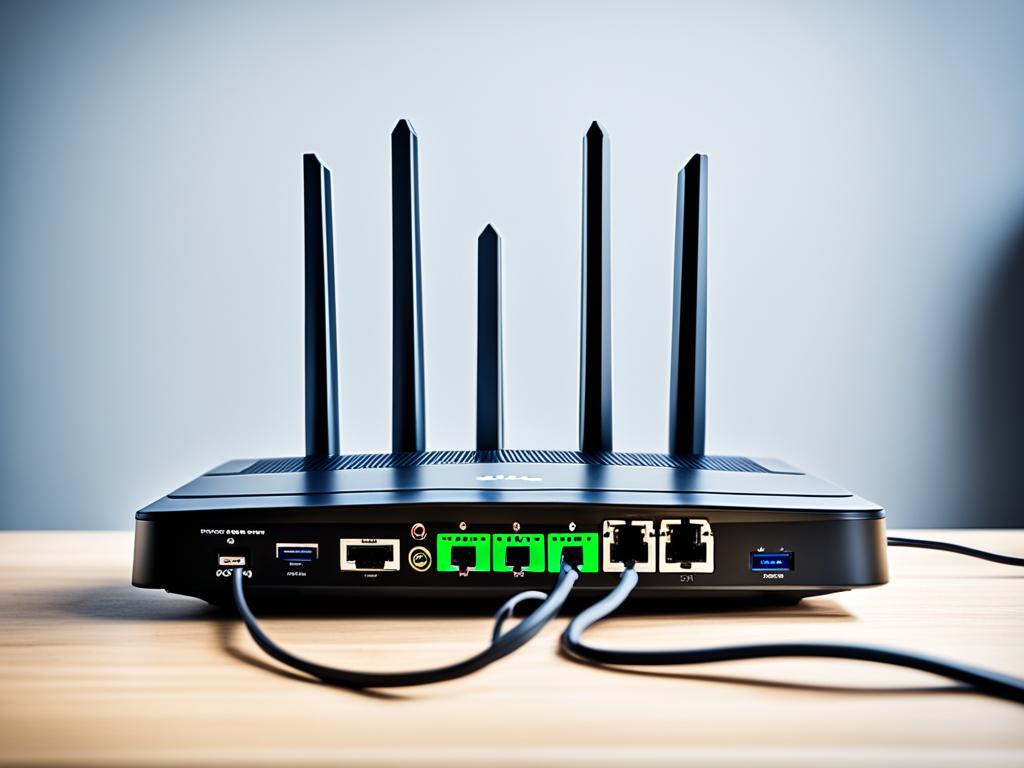
In today’s digital age, keeping my online presence safe is key. That’s why I’m sharing how to install a VPN on my router. This gives me total security on all my devices. Unlike setting up VPNs on each device, a VPN router makes my whole network secure. This guide will help you boost your network privacy and make your online experience safer.
What is a VPN Router?
A VPN router is a device that does more than just route internet traffic. It also has built-in VPN features. This means it sends all internet traffic from devices through a secure VPN service. It’s great for devices that can’t use a VPN app on their own, like smart TVs and gaming consoles.
Using a VPN router keeps my whole home network safe. It keeps my sensitive info safe while I’m online. This way, my family and guests can also browse the internet safely, without worrying about their privacy.
So, a VPN router makes my home network safe and private for everyone. It hides my internet activity, making my online time safer.
How Does a VPN Router Work?
Learning about VPN routers boosts my network’s security. A VPN router sets up a secure connection for all devices on my network. This keeps my internet use safe from hackers and others who might try to snoop.
When I use a VPN router, all devices get this extra layer of protection. My laptop, phone, and even smart home gadgets stay safe without needing special VPN software. This makes keeping my network safe easier and more consistent.
The router starts by connecting to a VPN server to make the secure link. As my data moves through this tunnel, it’s unreadable to anyone trying to catch it. This shows why many see VPN routers as key for online privacy.
Overall, having these features means my whole network is safer with a strong, encrypted connection. This highlights why getting a good VPN router is crucial for keeping my network secure.
How to Install VPN on Router
Installing a VPN on your router can seem hard, but it secures all your devices at once. First, pick a VPN service that works well with routers. NordVPN or ExpressVPN are good choices because they’re easy to set up.
Selecting a Compatible VPN Service
Choosing the right VPN service is key for a smooth setup. Some services are made for router use. Look for providers that clearly state router support to avoid problems later.
Checking Router Compatibility
After picking a VPN, make sure your router can use it. Not all routers work with VPNs because of hardware or old software. Check the manufacturer’s site for compatible models or updates that help.
General Steps for Installation
Once you’ve checked your router and VPN match, start the setup. Here are the main steps:
- Open your router’s web interface by typing its IP address in your browser.
- Find the VPN settings under “Advanced” or “Network” sections.
- Enter your VPN details, like the server address, username, and password.
- Save the changes and restart your router.
These steps will help you set up a VPN on your router. This protects all devices connected to it. Make sure everything is compatible and set up correctly for safe browsing on different devices.
Identifying VPN Compatibility in Your Router
It’s important to know if your router supports VPNs for a secure and efficient network. Look at the router’s specs or the user manual. Brands like Linksys, Asus, and Netgear often have routers that support VPNs. If you have one of these, you might be good to go.
Manual and Online Research
To check if your router works with VPNs, follow these steps:
- Find your router’s model number, usually on the device or packaging.
- Look for VPN info in the user manual.
- Check the manufacturer’s website for router specs, including VPN support.
- Search online forums for user reviews and tips on VPN setup.
Common Compatible Router Brands
Many brands have routers that work well with VPNs. Here’s a list of popular brands and their VPN-friendly models:
| Brand | Model | Router Specifications |
|---|---|---|
| Linksys | WRT3200ACM | Open-source firmware compatible, dual-band, high-speed. |
| Asus | RT-AC86U | VPN client capability, 1.8GHz dual-core processor. |
| Netgear | R7800 Nighthawk X4S | Supports OpenVPN, powerful WiFi performance. |
Choosing the Right VPN Protocol
Choosing the right VPN protocol is key to a secure connection. Each protocol has its own set of features that affect both security and speed. OpenVPN is a top choice for many, balancing speed and protection well.
Let’s explore some common protocols:
| Protocol | Security Level | Speed | Ease of Setup |
|---|---|---|---|
| OpenVPN | High | Moderate | Moderate |
| L2TP/IPsec | High | Slow | Easy |
| PPTP | Low | Fast | Very Easy |
When picking a protocol, think about what matters most to you. For top security, OpenVPN and L2TP/IPsec are good choices. OpenVPN is great for those who like to tinker with settings. If you want fast access with less effort, PPTP might be the way to go, even though it’s less secure.
Think about your router and what you need. Each protocol works differently with various hardware and goals. Make sure to consider both the security you want and the speed you need when choosing.

Step-by-Step Guide to Setting Up a VPN on Your Router
Setting up a VPN on my router is a great way to boost my home network’s security and privacy. I’ll walk you through the key steps to make sure it goes smoothly. We’ll look at accessing the router’s settings, configuring the VPN, and testing it to make sure it works right.
Accessing Your Router’s Configuration Panel
First, I need to get into my router’s settings. This means typing the router’s IP address into a web browser. You can usually find this IP in the user manual or on the router itself. After entering the address, I log in with my admin details. It’s key to keep these safe.
Configuring the VPN Client Settings
Once logged in, I move on to setting up the VPN client. Each router is different, so I’ll have to look for the VPN settings in various places. Here, I pick the VPN protocol, upload any needed files, and enter my VPN service details. I follow my VPN provider’s instructions closely to ensure everything is set up right.
Testing Your VPN Connection
Testing my VPN is a must. After setting up the VPN client, I check if it’s working by looking at my IP address. It should match the VPN server’s location. I also test the speed to see if there are any performance changes. If all looks good, I know my network is secure through the VPN.
Different Types of VPN Routers
Choosing a VPN router can be easier if you know the different types available. Routers usually fall into two main groups: those with built-in VPN and those needing firmware upgrades. Each type has its own benefits and challenges. This knowledge helps match the solution to your needs.
Routers with Built-In VPN Support
Routers with built-in VPN make setup easy. They connect directly to popular VPN services. The benefits include:
- Simpler installation process without the need for additional modifications.
- Better reliability as the firmware is designed specifically for VPN operation.
- Potentially stronger security protocols integrated directly into the hardware.
Routers That Require Firmware Upgrades
Some routers don’t have VPN built-in and need firmware upgrades like DD-WRT or Tomato. This is good for those who like to customize their routers. Key points to consider are:
- Possible enhancement of router capabilities beyond basic VPN usage.
- Ability to reshape the network’s performance and efficiency.
- More control over advanced features, including security settings.
| Feature | Built-In VPN Routers | Firmware Upgrade Routers |
|---|---|---|
| Setup Complexity | Easy | Moderate to Difficult |
| Customization | Limited | Extensive |
| Reliability | High | Variable |
| Cost | Generally Higher | Generally Lower |
Choosing between these VPN router types depends on what you prefer and your tech skills. Knowing these factors is key to getting the VPN experience you want. It helps make your internet connection more secure and tailored to your needs.
Pros and Cons of Using a VPN on Your Router
Using a VPN on my router has its ups and downs. Knowing the good things about VPNs helps me make smart choices for my network. It’s also key to know the downsides, which might affect how I use it.
Benefits of Network-Wide Protection
One big plus of VPNs is they protect every device on the router. This means my smartphones, smart TVs, and more get VPN security. I don’t have to set up VPNs on each device, which makes things easier.
With a VPN over my whole network, I feel safer from cyber threats. It’s a big comfort in today’s online world.
- Enhanced privacy for all devices
- Simplified management, as I only handle one configuration
- Consistent protection from data leaks
Potential Drawbacks
VPNs on routers aren’t perfect. One big issue is they might slow down my internet. Encrypting and decrypting data takes time, making websites load slower.
Setting up the router can also be tricky, especially for those new to networking. Troubleshooting can be hard, and the encryption quality varies by router type.
- Possible reduced internet speeds
- Increased complexity in setup and troubleshooting
- Variable encryption quality based on router specifications
Tips for Using Your VPN Router Effectively
To get the most out of my VPN router, I follow some key VPN usage tips. Setting up a VPN right takes focus and care. I start by saving the router’s settings page as a bookmark. This makes it simple to go back to the settings when I need to.
It’s important to manage the router’s settings well to boost its performance. I avoid extra connections that can slow things down. This keeps my VPN fast and easy to use on all devices.
Many forget to update their router’s firmware. Keeping it updated means I get the newest security features. I also check the network security settings often. This keeps everyone online safe and secure through the VPN.
Lastly, I test my VPN connection regularly. This helps me find and fix any problems early. By using these tips, I make sure my VPN is secure and works well.
| Tip | Description |
|---|---|
| Bookmark Settings Page | Easily access router settings to make adjustments when needed. |
| Avoid Redundant Connections | Use your VPN only where necessary, ensuring speed and accessibility. |
| Update Firmware Regularly | Keep router security features up-to-date for better protection. |
| Review Security Settings | Conduct frequent reviews of network security for enhanced safety. |
| Test VPN Connection | Regularly check connection stability to identify issues early. |
Conclusion
To conclude, setting up a VPN on your router is key to a secure home network. It boosts your privacy and shields all devices on your network. A VPN gives broad protection that single device setups can’t offer.
We’ve looked at picking the right VPN service and setting up your router. These steps make your online privacy strong. A VPN is a key tool that boosts your security when used with your router.
Whether you’re streaming, browsing, or working online, a VPN on your router keeps your connection safe. I hope this guide has helped you take control of your online security. Now, you can enjoy the internet without worries.