
How to Disconnect Bitdefender VPN – Simple Guide
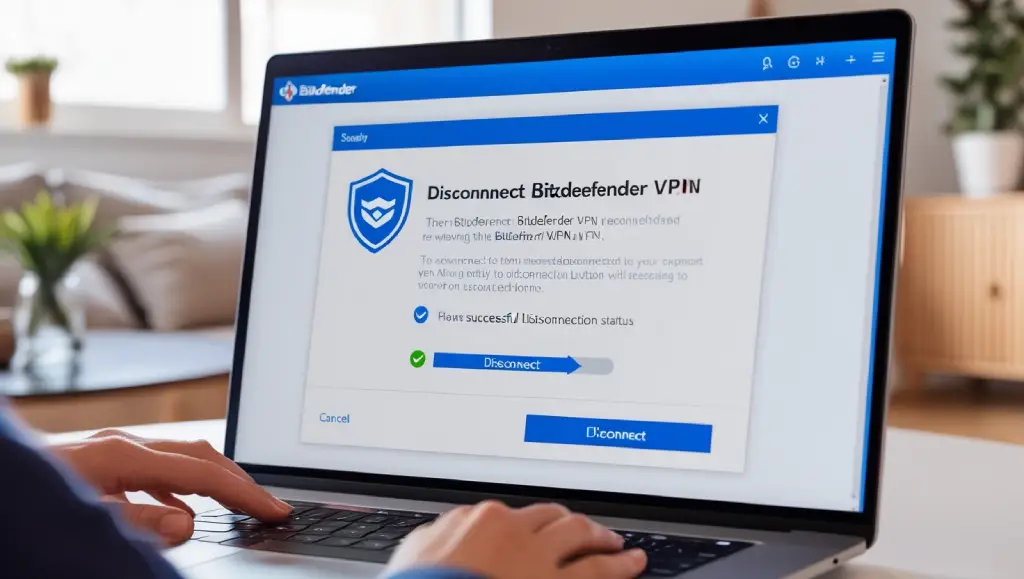
Learn how to disconnect Bitdefender VPN easily with this step-by-step guide. Discover practical tips and tricks for a seamless disconnection process.
Bitdefender VPN is popular for securing your internet connection, but sometimes you may need to disconnect it, whether to troubleshoot issues, save bandwidth, or use a different VPN service.
Disconnecting Bitdefender VPN might seem straightforward, but ensuring that your connection is fully severed without any lingering traces is essential for maintaining control over your network.
This guide will walk you through each step with easy instructions, so you can confidently disconnect Bitdefender VPN whenever needed. Let’s dive in!
Bitdefender VPN is a well-known tool that keeps your online activity private and secure. However, there may be instances when you want to disconnect it, perhaps for a specific task or to switch to a different network.
In this section, we’ll dive deeper into why knowing how to disconnect Bitdefender VPN effectively is crucial for optimizing its use and ensuring your connection preferences are respected.
How to Disconnect Bitdefender VPN
Understanding how to disconnect Bitdefender VPN is a fundamental skill for any user. Whether you’re disconnecting it temporarily or permanently, follow the steps below to navigate the process smoothly.
1. Open Bitdefender VPN
The first step in disconnecting Bitdefender VPN is to open the app interface.
Step-by-Step Instructions
- Locate the Bitdefender Icon: Look for the Bitdefender icon on your taskbar (for Windows) or menu bar (for macOS).
- Access the Main Interface: Click on the icon to open Bitdefender Central, then navigate to the VPN section within the application.
- Launch VPN Dashboard: Once you’re in the VPN section, you’ll see options to manage your VPN settings. This dashboard provides access to your connection status, server selection, and usage statistics.
This preliminary step is essential for accessing the features needed to initiate the disconnection. Ensure that you are on the main interface to proceed effectively with the disconnection process.
2. Disconnect the VPN

With the VPN dashboard open, you are ready to disconnect your Bitdefender VPN connection.
Detailed Process
- Locate the Connection Toggle: Look for the large toggle or “Disconnect” button, usually found on the main screen of the VPN interface.
- Click on Disconnect: Click on the toggle or disconnect button to initiate the disconnection process. The app will immediately stop routing your internet connection through the VPN server.
- Wait for Confirmation: A prompt or notification usually appears to confirm that you are disconnected. This message may say “Disconnected” or indicate a change in your connection status.
Importance of Proper Disconnection
Disconnecting Bitdefender VPN ensures that your internet connection reverts to your local network’s IP. This step is particularly important if you want to access content restricted by the VPN or perform tasks better suited to your local IP address.
3. Confirm Disconnection
It’s essential to confirm that Bitdefender VPN has fully disconnected. This verification step prevents any potential issues with connection stability or security leaks.
How to Check Disconnection Status
- Observe the Interface Status: Check that the VPN dashboard shows a “Disconnected” status.
- Double-Check Notifications: Look for any pop-up notifications that confirm the disconnection.
- Exit the Application (Optional): For complete assurance, consider exiting the Bitdefender application after disconnection.
Confirming the disconnection helps ensure that no background processes remain active, which can sometimes cause unintended VPN connections or slower internet speeds.
4. Verify the Disconnection
After disconnecting from Bitdefender VPN, verifying your network connection can further ensure a clean disconnection.
Steps to Verify
- Check Your IP Address: Go to a website like “What’s My IP” to verify that your IP address matches your local network instead of the VPN server.
- Run a Speed Test: Performing a speed test can reveal if your connection speed has returned to normal, as VPNs sometimes reduce browsing speeds.
- Test Access to Region-Specific Sites: Try accessing content restricted by Bitdefender VPN to confirm you are no longer routed through the VPN server.
This verification ensures that your internet connection is restored to its default settings, with no VPN influence lingering in the background.
Conclusion
Knowing how to disconnect Bitdefender VPN effectively gives you control over your network settings and enhances your browsing flexibility.
By following this comprehensive guide, you can seamlessly toggle between secure VPN use and open internet browsing, ensuring a smooth online experience tailored to your needs.
Explore more VPN tips on UsageVPN.com for trusted information and guidance on VPN usage and optimization.
FAQs
Q: Can I disconnect Bitdefender VPN temporarily?
A: Yes, you can disconnect temporarily and reconnect anytime by following the steps above.
Q: Will disconnecting Bitdefender VPN affect my device security?
A: Disconnecting the VPN reduces the added security layer Bitdefender provides, but your device’s core security features remain unaffected.
Q: Is there a quick shortcut to disconnect Bitdefender VPN?
A: You can disconnect from the taskbar icon (Windows) or menu bar (Mac) by selecting the VPN section and toggling the connection.