Russian Artist and Putin Critic Semyon Skrepetsky Shot Dead in Poland, Officials Confirm
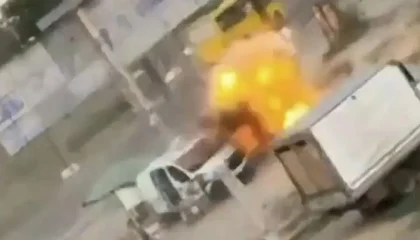
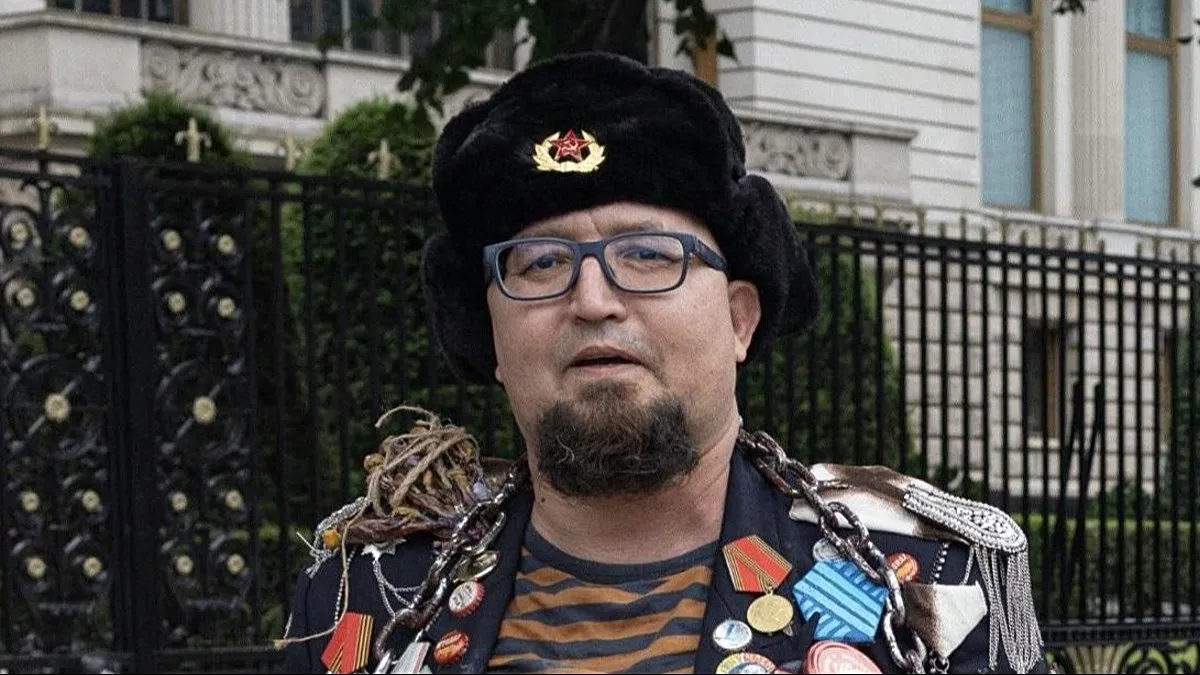
Russian artist and Putin critic Semyon – On Tuesday, Polish officials confirmed the tragic death of Semyon Skrepetsky, a Russian artist renowned for his sharp critiques of President Vladimir Putin, following a fatal shooting in eastern Poland. The incident occurred on Monday morning when the 44-year-old, whose real name is Robert Kuzovkov, was gunned down by an unknown assailant wielding a handgun. According to the prosecutor’s office in Lublin, the investigation into the murder is ongoing, with the focus on determining the motive behind the attack.
“An investigation is being conducted…into the murder of a 44-year-old citizen of the Russian Federation…known in the media as Semyon Skrepetsky,” stated Marcin Kozak, a spokesperson for the Lublin prosecutor’s office, during a press briefing. He further noted that two Belarusian nationals have been apprehended near the Belarusian consulate in Biała Podlaska, where the shooting took place.
Details of the attack revealed that Skrepetsky was shot three times before the perpetrator approached him at close range and fired two additional shots. The assailant’s identity remains unclear, but the location of the crime—adjacent to the Belarusian consulate—has raised questions about potential ties to the country’s government. While no formal charges have been filed against the two detained individuals, they are currently under the authority of both the prosecutor’s office and the police.
A Voice of Dissent in Exile
Skrepetsky, a figure of both artistic and political significance, had relocated to Poland in 2021, citing concerns over political persecution in Russia. From his new home, he continued to challenge the Kremlin through provocative caricatures and satirical works that targeted a wide array of Russian political figures, including Putin, Joseph Stalin, and even opposition leaders like Alexei Navalny. One of his most memorable pieces reimagined a classical Orthodox icon, replacing the Mother of God with Stalin cradling Putin as if holding an infant.
His creative output was characterized by bold imagery and incisive commentary, often blurring the lines between art and activism. By satirizing icons of power, Skrepetsky positioned himself as a cultural provocateur, drawing attention to the authoritarian tendencies of the Russian government. Despite his critical stance, he maintained a unique presence in the international art scene, often participating in events that supported Russian opposition movements while also casting doubt on their methods.
Context of Political Repression
The murder of Skrepetsky fits into a wider trend of targeting Russian dissidents who challenge the Kremlin’s authority. In recent years, numerous activists, artists, and political figures have faced threats, arrests, or even death for their outspoken criticism of the regime. This pattern is exemplified by the case of Alexei Navalny, whose poisoning and imprisonment sparked global outrage. Navalny, who died in a Russian penal colony in 2024, was one of the most prominent symbols of resistance against the government, and his death was followed by accusations from the Kremlin that the West had exploited the situation.
Following Navalny’s passing, the Russian leadership maintained its denial of involvement, simultaneously blaming Western nations for amplifying the narrative. In 2025, Navalny’s widow, Yulia Navalnaya, unveiled test results conducted by foreign laboratories, supported by the governments of five countries, which detected epibatidine—a potent neurotoxin found in frog venom—in samples from her husband’s body. This discovery added fuel to the debate over the circumstances of his death.
International Art as a Frontline of Dissent
Skrepetsky’s fate echoes the struggles of other Russian artists and activists who use their platforms to oppose the government. The punk band Pussy Riot, for instance, has long been a symbol of resistance, with members imprisoned and persecuted for their anti-Putin protests. In May 2025, the group staged a protest in Venice at the 61st International Art Exhibition, the Biennale, highlighting Russia’s growing influence and the tensions surrounding its presence in global cultural spaces.
These incidents underscore the precarious position of critics in Russia, where public dissent can lead to severe consequences. Skrepetsky’s move to Poland in 2021 marked a shift in his career, as he sought refuge in a country that offered him a platform to continue his work. His dual role as both an observer and critic of the opposition highlighted the complexity of his position, as he navigated the fine line between supporting and questioning his fellow dissenters.
The shooting in Biała Podlaska has sparked discussions about the reach of Russian influence beyond its borders. While the Belarusian nationals arrested in connection with the crime may be linked to the Russian government, the incident also reflects the broader geopolitical dynamics at play. As Skrepetsky’s death reverberates across the region, it serves as a reminder of the dangers faced by those who challenge the status quo, both in Russia and in its neighboring countries.